Never Lose Context Again: Building a Better Terminal History
I live in the terminal. Whether I'm building data pipelines or optimizing serverless functions, my command history is my second brain.
But the standard Zsh history (~/.zsh_history) has a major flaw: It lacks context.
Six months from now, when I find that complex ffmpeg or aws s3 command I ran, I won't remember:
- Which directory I was in?
- Which Git branch was active?
- Which Conda environment was loaded?
- Did the command actually succeed?
- How long did it take?
I decided to solve this by building a Global Command History—a system that tracks everything. Here is how I built it.
The Problem with Default History
Standard shell history saves the command string. If you configure it well, you might get a timestamp. But that’s it.
bash# Standard History
8923  git commit -m "fix bug"
8924  docker build .
8925  ./scripts/deploy.sh
This tells me nothing about the state of my machine when I ran those commands. If ./scripts/deploy.sh failed, I wouldn't know. If docker build took 45 minutes, I wouldn't know.
The Solution: Enriched Metadata
I wrote a lightweight Zsh plugin, cmdlog, that hooks into the shell's execution lifecycle to capture metadata before and after every command.
Instead of a simple list, my history looks like this:
text[2026-01-09 14:30:01] /Users/sumit/dev/api [git:main] (conda:py311) -> npm install
[2026-01-09 14:32:05] /Users/sumit/dev/api [git:main] (conda:py311) [2m4s] -> docker build .
[2026-01-09 14:35:10] /Users/sumit/dev/api [git:feature-x] (conda:py311) [EXIT:1] -> ./test.sh
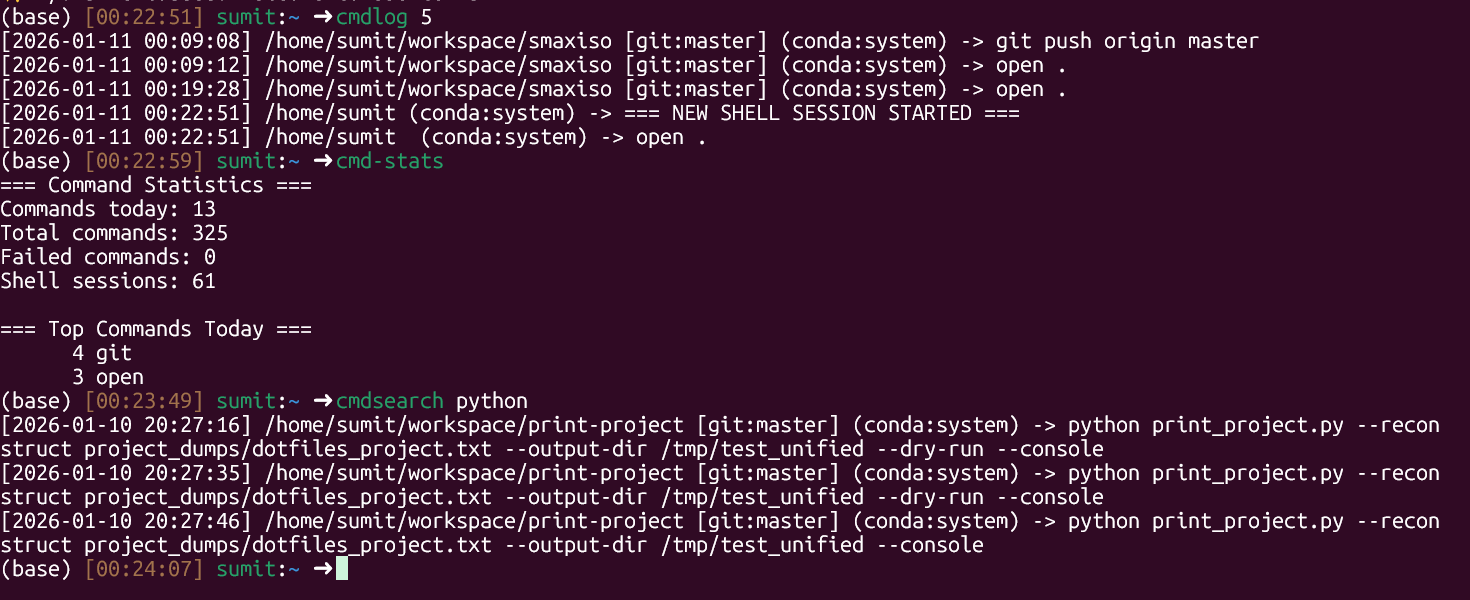
Now I have context:
- Directory: I know exactly where the command ran.
- Git Branch: I know I was on
feature-xwhen the test failed. - Environment: I know I was using Python 3.11.
- Duration: I know the build took 2 minutes and 4 seconds.
- Exit Code: I see immediately that
./test.shfailed (Exit 1).
Install in 3 Seconds (The Lazy Way)
I packaged this into a standalone tool so you don't have to copy-paste scripts. If you want this enhanced history in your terminal right now, just run:
bashcurl -fsSL https://raw.githubusercontent.com/smaxiso/cmdlog/main/install.sh | bash
(Always inspect scripts before piping them to bash! View the source here)
That's it. Restart your terminal, and you're tracking.
Under the Hood: The Code
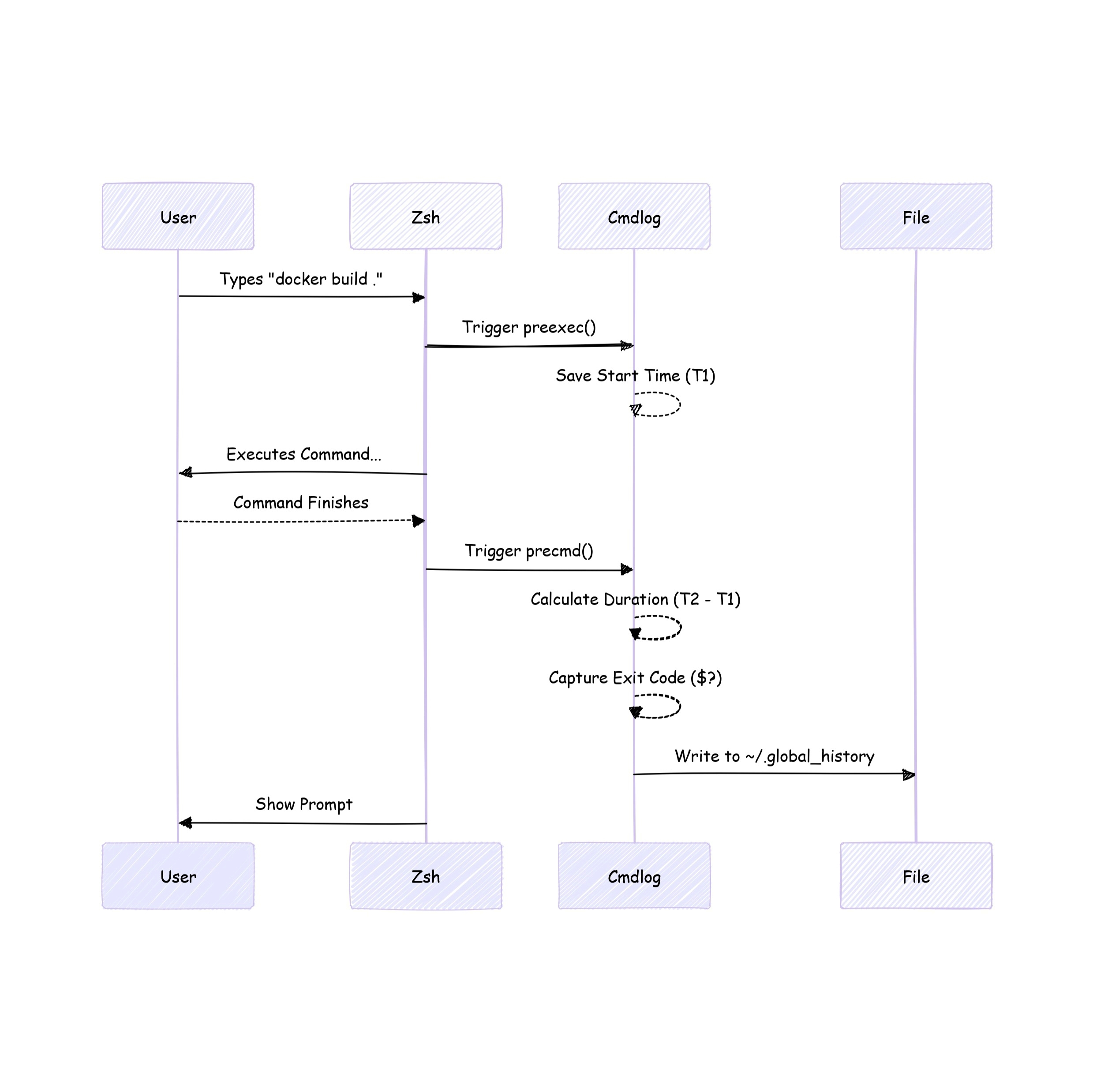
The logic relies on two Zsh hooks: preexec (runs before a command starts) and precmd (runs after a command finishes).
1. Tracking Duration (preexec)
First, we capture the start time when a command begins.
bashpreexec() {
    CMD_START_TIME=$(date +%s)
}
2. Logging the Context (precmd)
This is where the magic happens. We calculate the duration, capture the exit code of the previous command, and grab the environment details.
bashlog_global_command() {
    local exit_code=$? # Must be the very first line

    # ... (timestamp, directory, git branch logic) ...

    # Write to the global log file
    if [[ $exit_code -eq 0 ]]; then
        printf "[%s] %s [git:%s] %s -> %s\n" ... >> ~/.global_history
    else
        printf "[%s] %s [git:%s] [EXIT:%d] %s -> %s\n" ... >> ~/.global_history
    fi
}
The Superpower: Querying Your Life
Collecting data is useless if you can't query it. I created a set of POWER aliases to turn this log file into a tactical weapon.
1. The "Rewind Button" (cmdlog [N])
Want to see what you just did?
cmdlogshows the last 20 commands.cmdlog 100shows the last 100.
No more scrolling up infinitely.
2. The "Debugger" (cmd-errors)
If I'm debugging a flaky build script, I can filter specifically for commands that failed.
bashalias cmd-errors='grep "\[EXIT:" ~/.global_history'
3. The "Context Search" (cmd-here)
Standard history searches everything. Sometimes I only want to know what commands I've run in this specific folder.
bashalias cmd-here='grep ":$(pwd)" ~/.global_history'
4. The "Standup Helper" (cmd-today)
Engineers hate trying to remember what they worked on yesterday. Just run cmd-today and see every command you ran since midnight.
Why You Should Do This
This setup has saved me countless hours. It allows me to:
- Audit my work: "Did I actually run the migration in
prodor juststaging?" - Optimize builds: I can spot when my build times start creeping up because I track duration.
- Recover context: I can restore the exact environment (branch + conda env) needed to reproduce a bug from three weeks ago.
It's entirely portable. Whether I'm on my MacBook, WSL, or an EC2 instance, my history travels with me.